Usage Guide
Follow this guide to install and run Cilukbot Triggerbot easily.
Step 1
Download & Setup
Download and prepare the required files before running your triggerbot.
Download Required Files
Get the main package and all supporting files from the official distribution channel.
Enter Password
Use the access password provided in your confirmation message to unlock the archive.
Install Required Tools
Run the prerequisite installer included in the package before launching the main software.
Choose Triggerbot Version
- Stable performance
- Recommended for most users
- Balanced response
- Improved detection logic
- Optimized response
- Better consistency
- Lightweight version
- Runs on lower specs
- Minimal resource usage
Versions
Triggerbot Versions
Choose the version that suits your setup.
Triggerbot V5
- CPU-only operation
- Runs without GPU
- Stable trigger response
- Low resource usage
- Best for laptops & low-end PCs
Triggerbot V6
- Supports CPU & GPU processing
- Faster reaction time
- Improved trigger accuracy
- More stable in long sessions
- Recommended for mid-high PCs
Lite Version
- Lightweight engine
- Minimal system usage
- Runs on low-end systems
- Simplified trigger logic
- Stable performance mode
Configuration
Recommended Game Settings
Apply these in-game settings for the best compatibility and performance with Cilukbot.
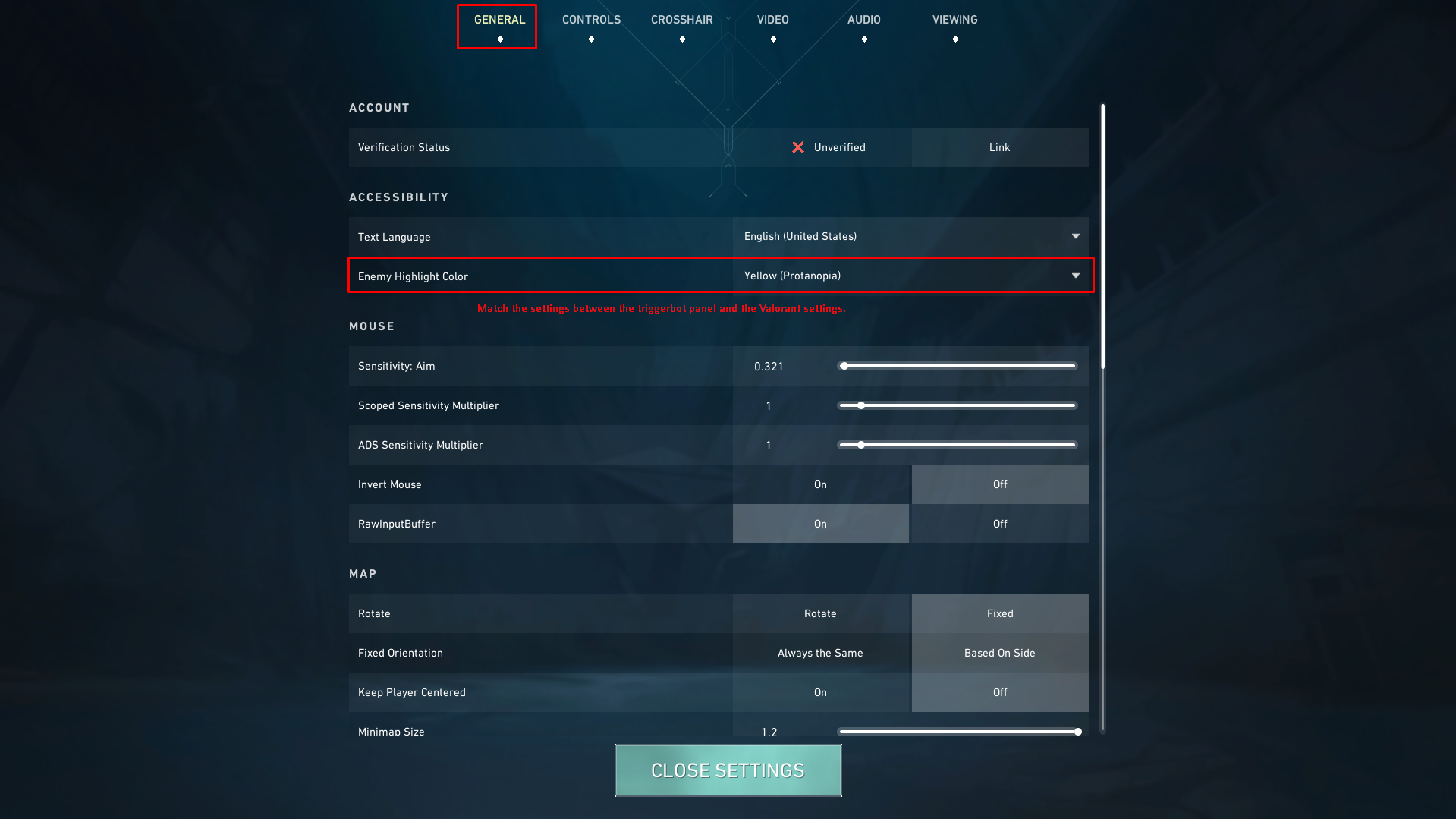
Set 1
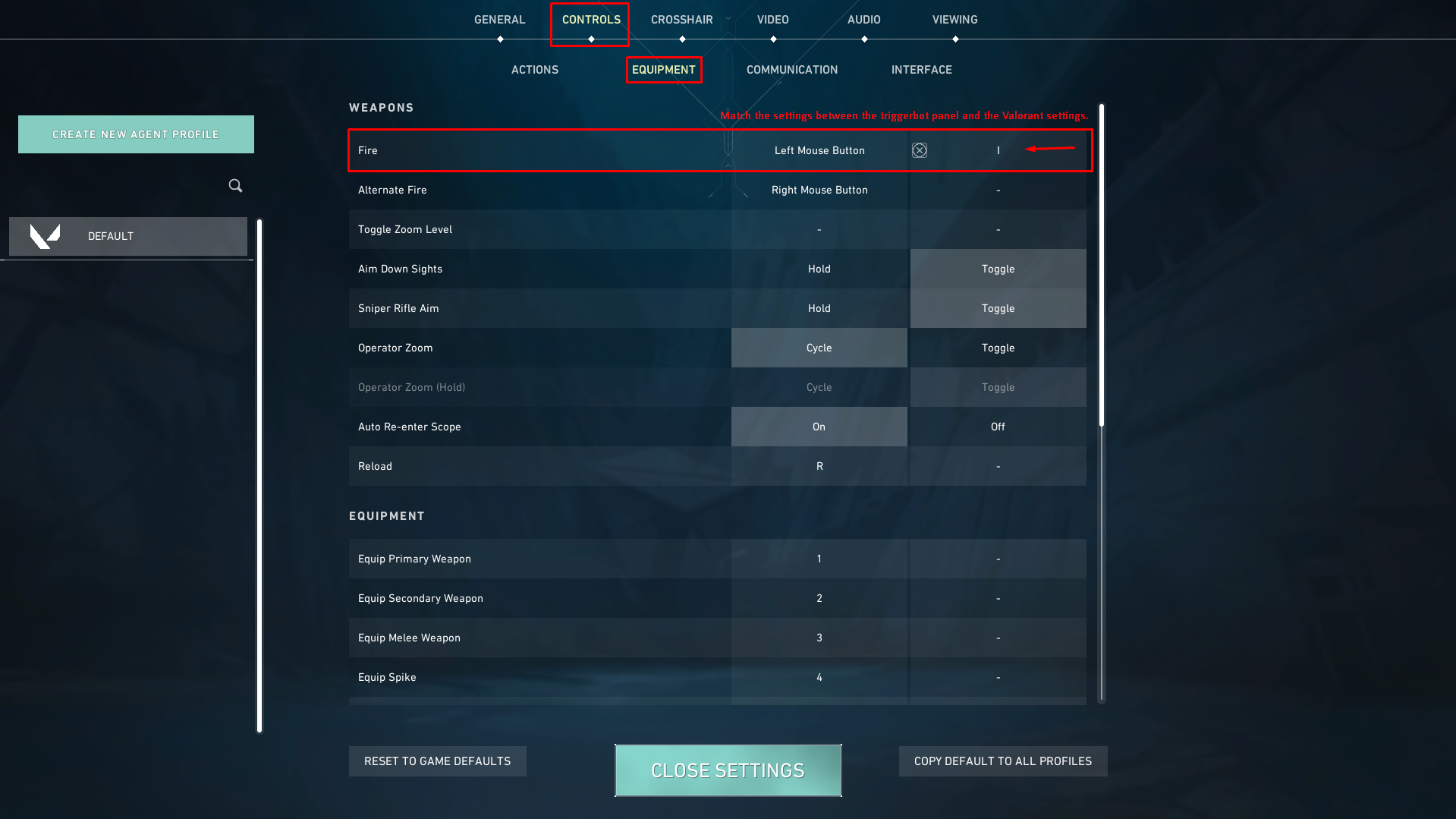
Set 2
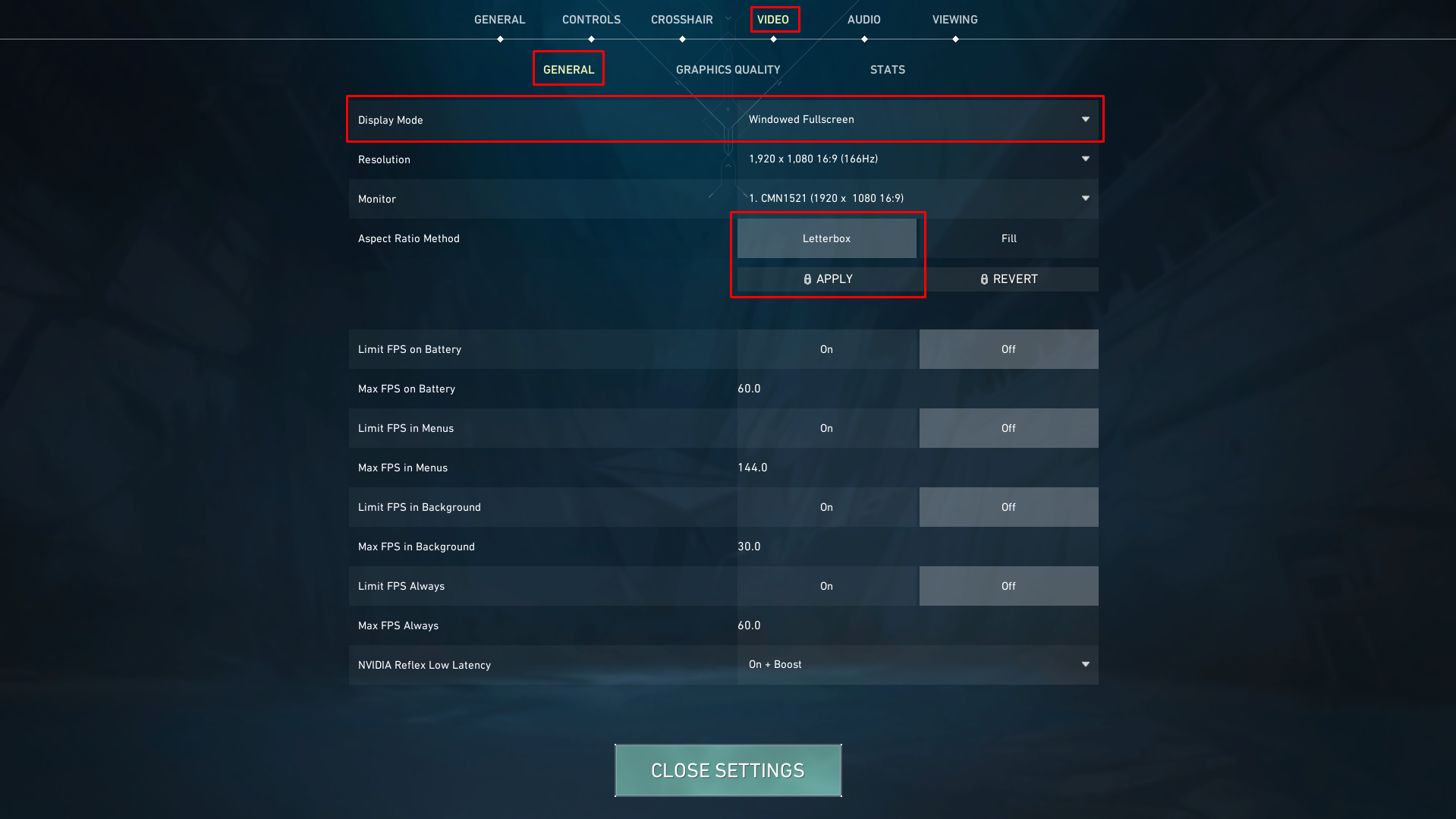
Set 3
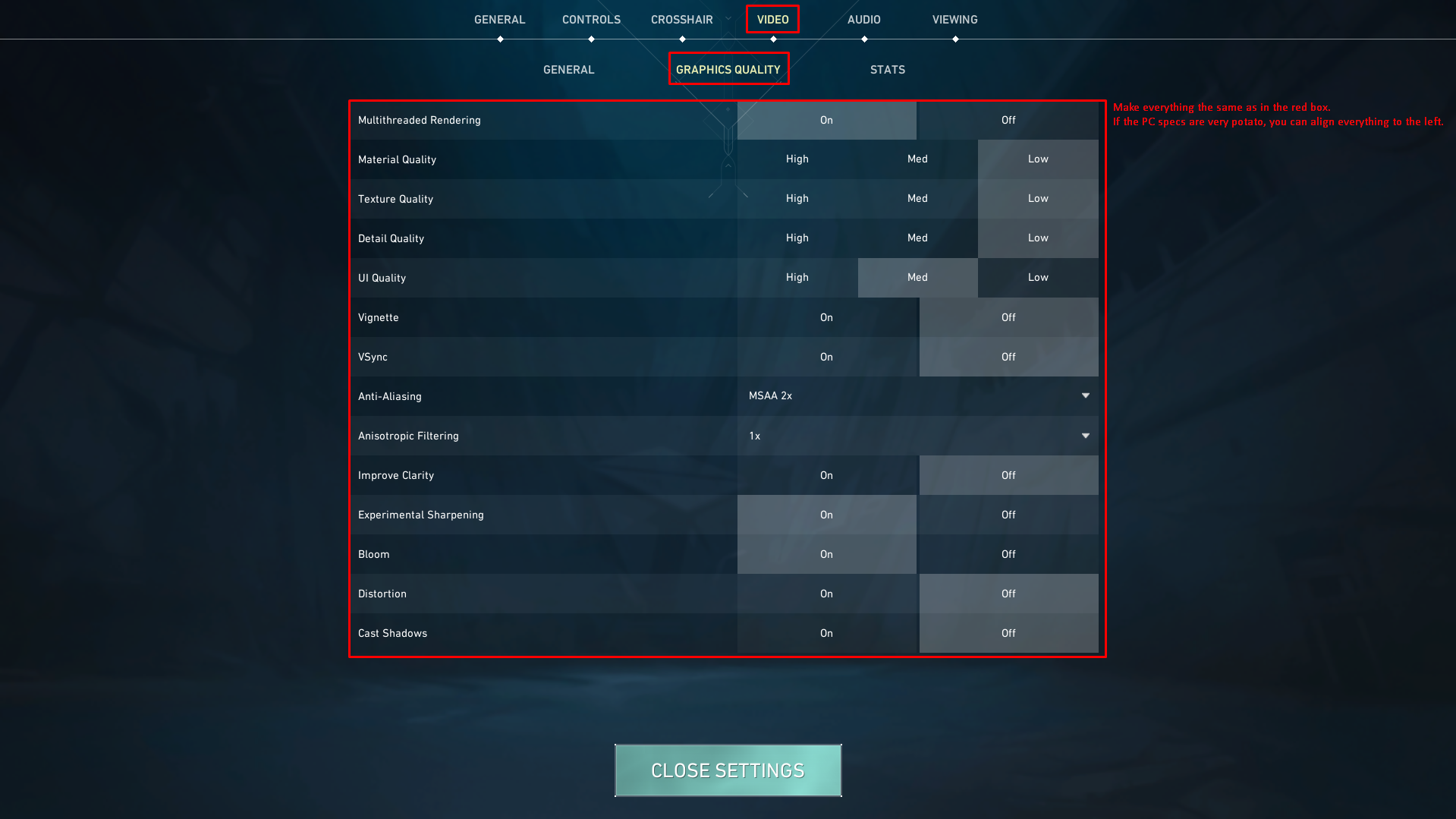
Set 4
Controls
Mouse Button Reference
Cilukbot maps specific actions to mouse buttons. Use this reference to understand the default layout.
Left Mouse Button
Primary action / fire
Right Mouse Button
Aim / secondary action
Middle Button / Scroll
Toggle mode / zoom
Side Button (Back)
Quick reload / ability 1
Side Button (Forward)
Sprint / ability 2
Mouse Layout Diagram
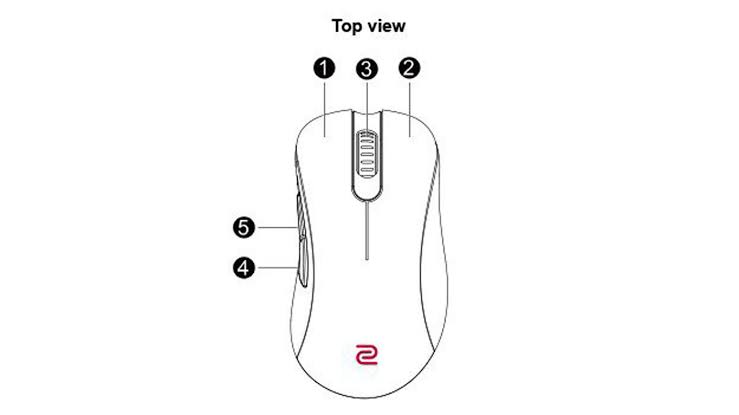
Default button mapping — customizable in Settings → Controls
GPU Mode
Enable Advanced Mode
Switch from CPU to GPU processing in three simple steps for maximum performance.
Open Cilukbot
Launch the software from your desktop shortcut or system tray. Wait for the dashboard to fully load.
Navigate to Settings
Click the gear icon in the top-right corner or press Ctrl+, to open the Settings panel.
Switch CPU → GPU
Under the "Processing Mode" section, toggle the switch from CPU to GPU. The software will restart the engine automatically.
GPU Mode active — the status indicator turns green in the dashboard header.
GPU Mode — Success Preview
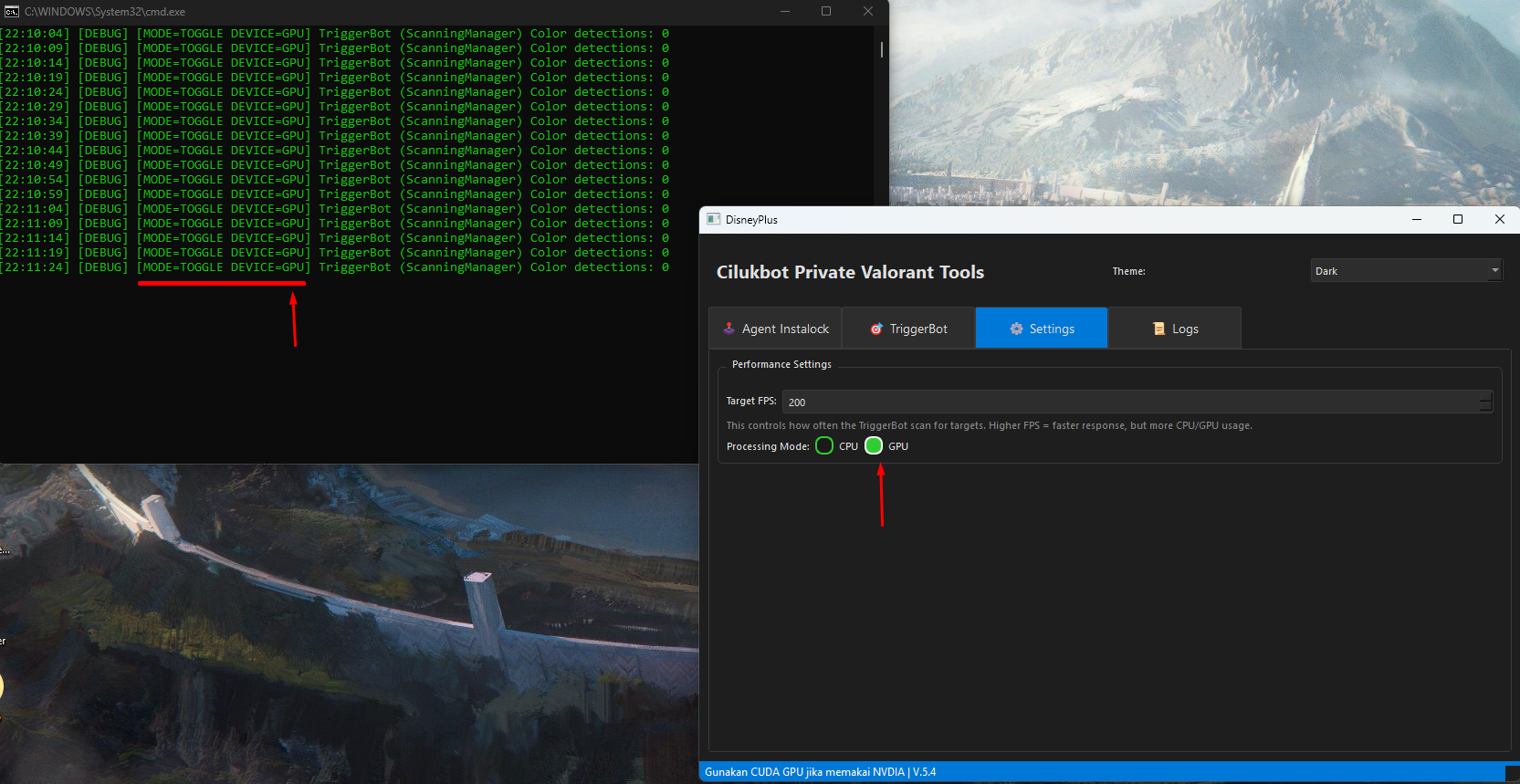
Dashboard showing GPU Mode enabled with green status indicator
Auto Adjustment
Automatic System Adaptation
Cilukbot continuously monitors your system load and automatically adjusts its processing intensity to maintain optimal performance without impacting your game.
- Real-time CPU/GPU load monitoring
- Dynamic thread allocation based on available resources
- Automatic fallback to CPU mode if GPU becomes unavailable
- Self-healing reconnection on network drops
Stealth Feature
Hide Window Mode
This feature allows the application window to be hidden from Task Manager and system process lists, providing a cleaner and less visible runtime state.
CTRL + SHIFT + HHide application window from Task Manager view
CPU Mode
Works on Most Systems
Cilukbot is fully functional without a dedicated GPU. CPU Mode is designed to deliver reliable performance on any modern processor, including integrated graphics systems.
- Works on Intel HD / UHD integrated graphics
- Optimized thread scheduling for CPU-only systems
- Slightly reduced processing throughput — still fully functional
- Automatically selected when no compatible GPU is detected
100%
Feature Parity
All features available
<2%
CPU Overhead
Minimal system impact
Win 10+
Compatibility
Build 1903 or later
Auto
Mode Detection
No manual config needed
Troubleshooting
Common Issues
Quick fixes for the most frequently reported problems. If your issue isn't listed here, reach out to support.
This usually happens due to a missing dependency or antivirus interference. Try the following steps:
- Right-click the executable and choose Run as Administrator
- Temporarily disable real-time antivirus protection and retry
- Ensure Visual C++ Redistributable 2022 is installed
- Check that your Windows version is 10 (build 1903+) or 11
- Re-download the package — the file may be corrupted
Make sure the game is running before launching Cilukbot. The engine scans active processes on startup.
- Launch the game first, then open Cilukbot
- Run both the game and Cilukbot as Administrator
- Verify the game is in the supported titles list
- Disable overlays (Discord, GeForce Experience) that may interfere
Cilukbot performs an initial calibration scan on first launch. This is normal and resolves within 30 seconds.
- Wait 30–60 seconds for the calibration phase to complete
- Switch to CPU Mode if you have no dedicated GPU
- Lower the scan frequency in Settings → Performance
- Ensure no other heavy background processes are competing
Alternative Network mode requires specific ports to be open. Check your firewall and router settings.
- Use VPN or proxy software
- Allow Cilukbot through Windows Defender Firewall
- Try switching between TCP and UDP in network settings
Still Need Help?
Our support team is available 24/7
Average response time under 15 minutes. Join our community or open a support ticket directly.